Showing posts with label EPM. Show all posts

Monday, 1 October 2018

Project Online – Performance Improvements related to Create & Publish operations

New changes are being rolled out as of 1st Oct 2018

How does this affect me?

After these changes takes place, your users will be able to: - Change the way After events are handled in Project Online with Asynchronous After Event Handling. Project detail pages will load more quickly if they use add-ins that rely on After events. Work with the developer of your add-ins to see if you can benefit from this change. If so, enable the new “Turn on Asynchronous After event processing” setting available in the Additional Server Settings page of your Project Online administration panel. - Get back to work quickly during a Publish Job. We are changing the way the Publish function works in Project Online. Now, when a Publish job is started (either by the user pressing ‘Publish’ or a Project Detail Page triggering it), the user will be able to get back to work quickly. - Start projects sooner with shorter wait times in the Project Create feature. We’ve moved the ‘Create Summary Resource Assignment’ task to a separate queue job. These feature changes are rolling out now and the rollout is anticipated to be complete by mid-October.

What do I need to do to prepare for these changes?

You don’t need to do anything to prepare for these changes. Microsoft is gradually starting to roll these changes out now.

Wednesday, 9 May 2018

Project Online desktop client with Project Server 2013


Important Note from Microsoft;

We continue to upgrade our Cloud offerings, including the Project Online Desktop, to provide our customers with the latest capabilities and up-to-date online experiences. Due to these ongoing updates, beginning September 15, 2018, we will be removing the ability for the Project Online desktop client to connect to those versions of Project Server outside of mainstream support, including Project Server 2013.

Overall, this milestone is part of the end-of-life journey for Project 2013 Standard, Professional and Server. Prior to this, support for the connection between Project Professional 2013 and Project Online ended on August 31, 2017 while April 10, 2018 marked the end of mainstream support for Project Server 2013.

Thursday, 28 September 2017

Microsoft Project 2016 Step by Step 50% discount offer (Microsoft Press Store)

ebook deal: Microsoft Project 2016 Step by Step 50% off offer expires Oct 1 at 7AM GMT #ProjectServer #ProjectOnline http://ow.ly/W2v430fuhvI

The quick way to learn Microsoft Project 2016!
This is learning made easy. Get more done quickly with Project 2016. Jump in wherever you need answers–brisk lessons and colorful screenshots show you exactly what to do, step by step.

  • Quickly start a new plan, build task lists, and assign resources
  • Share your plan and track your progress
  • Capture and fine-tune work and cost details
  • Use Gantt charts and other views and reports to visualize project schedules
  • Share resources across multiple plans and consolidate projects
  • Master project management best practices while you learn Project
  • Look up just the tasks and lessons you need

Monday, 18 September 2017

SharePoint & Project Server 2016 Upgrade Error after Windows Update

Applies: SharePoint Server 2016, Project Server 2016

So, you have decided to apply Windows Server updates? Following this, it is important to remember to check if there are some pending updates for SharePoint and Project Server 2016. Sometimes there are security updates that apply to SharePoint and Project Server, which may not my not be obvious just by looking at the updates, prior to applying them.

After windows server updates are applied, it is best practice to ensure that your farm is in a healthy state. You can do this by running the SharePoint Configuration Wizard (SCW). If you have multiple Web/App Servers, Start by running this on the one that hosts the Central Admin (CA) portal.

You may encounter upgrade issue as shown in fig below.

#Blog_Upgrade Error

Fig (1) – SharePoint Config Wizard Upgrade Error

If this happens, run the below CMD on each of the Web/App Servers, starting with the main server (hosting the CA)

psconfig.exe -cmd helpcollections -installall -cmd secureresources -cmd services -install -cmd installfeatures -cmd applicationcontent -install -cmd upgrade -inplace b2b -force –wait

#Blog_Upgrade CMD

Fig (2) – Upgrade CMD

Hopefully this will resolve your issue, as per fig (3) below.

#Blog_Upgrade Successful

Fig (3) – Successful Upgrade

Hope this helps.

Tuesday, 27 June 2017

Updated feature: Project Online Rollup of Task and Assignment Timephased Data

Here is a communication update from Microsoft O365 support team, affecting Project Online.

-----------------------------------------

MC106623

Published On : June 21, 2017

Expires On : October 31, 2017

Action required by September 18, 2017

We’re adding the ability for a PWA admin to set how to rollup task and assignment timephased data. We’ll support weekly, monthly, fiscal period, or the previously supported by day grouping for timephased data. You could also choose to have no timephased data. You’ll have the option to choose which one you’d like to use.

How does this affect me?

If you choose to use this new option, you may benefit from simplified report building, reduced storage requirements, and improved report generation performance. However, existing reports that make use of the following entities could be impacted by this change:

- AssignmentBaselineTimephasedDataSet

- AssignmentTimephasedDataSet

- TaskBaselineTimephasedDataSet

- TaskTimephasedDataSet

We'll be gradually rolling this out in September, and the rollout will be completed by the end of October.

What do I need to do to prepare for this change?

Please review any reports that make use of the task and assignment by day information from the Project Online OData service once this feature is available to your organization. If your reports are rolling up timephased task and assignment data by one of the following new units: weekly, monthly, or by fiscal period, we recommend updating your reports to take advantage of the rollups for better performance. If you have an app that queries all the properties without specifying the property names, it may be impacted by this change. We recommend you set the apps query for specific properties. Read More below.

------------------------------

Configure rollup of timephased reporting data in Project Online

Applies To: Project Online

IMPORTANT:  This article describes the Timephased Data configuration settings that will soon be available. The purpose of this article is to help you plan for this upcoming feature, as it could offer you better performance when using reports that make use of the task and assignment by day information from the Project Online OData service.

Project admins can configure Project Online to roll up timephased reporting data to different levels of granularity. They can choose to roll up their data daily, weekly, monthly, or by fiscal period and retrieve the data through the timephased OData endpoints:

  • AssignmentBaselineTimephasedDataSet

  • AssignmentTimephasedDataSet

  • TaskBaselineTimephasedDataSet

  • TaskTimephasedDataSet

Benefits

A key benefit this provides is that it can help to improve report generation performance, especially in organization that have a lot of Project Online reporting data. While retrieving task and assignment timephased reporting data by day was the only option available previously, many organizations do not need this level of granularity. Being able to retrieve their data on a broader scope (such as weekly or month) can greatly improve report generation performance by reducing the amount of records that need to be downloaded. For example, instead of needing to retrieve 300,000 records when set to daily, setting to monthly could reduce this to a much lower number, such as 10,000 records.

Additionally, other benefits can include simplified report building, and reduced storage requirements.

How do I configure this setting?

  1. In Project Online home page, select Server Settings.

  2. On the Server Settings page, in the Enterprise Data section, select Reporting.

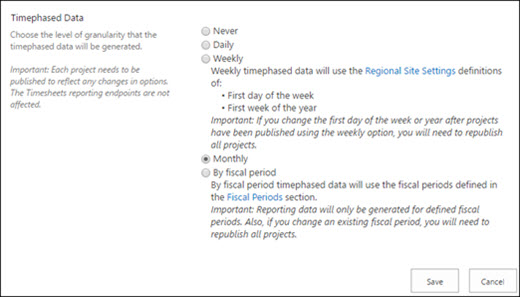
  3. On the Reporting page, in the Timephased Data section, select the option that you need:

    • Never

    • Daily

    • Weekly

    • Monthly

    • By fiscal period

Timephased Data settings

Tip: If you don't use any of the timephased Odata feeds, we highly recommend setting the Timephased Data option to "Never" which provides the added benefit of much faster Reporting Publish queue jobs.

Planning considerations I need to make

  • Republish existing projects - After changing the Timephased data setting, it will only take affect in an existing project if it is republished.

    NOTE: If you have many projects to republish, you can programmatically publish your Project Online projects. You should plan to do this at a time that will be least likely to impact your organization.

  • New instances - In new Project Online instances, note that the Timephased data default setting is Never. Make sure to select the appropriate Timephased data setting after creating your new instance to prevent the need to republish all your projects at a later time. Do also consider the tradeoffs associated with a more granular setting e.g. Daily vs Monthly with regards to the time it takes to Publish as well as pull down the timephased OData feed.

Friday, 2 October 2015

Unlocking the Mystery of Patching SharePoint & Project Server

Real-world, best practice approach for patching SharePoint and Project Server 2010/2013.

Applies: SharePoint and Project Server 2010/2013. The post below assumes that the reader has administrative knowledge of maintaining a SharePoint farm.  Also observe the planning notes below.

Planning 

As always, before embarking on SharePoint/Project Server update on your production system, answer these two questions;

A) Is the update necessary? Is it solving an existing problem?

Do not simply rush into applying the latest updates just because it has been released!!

That said, do ensure that you are not too far behind on patching your environment, that you have an unsupported system. Remember that patching is not just about SharePoint and Project. You need to ensure that SQL Server (and related components) are also at a supported patch level.

B) Have you successfully tested the patch/update on development/test environment with a copy of live data prior to applying on the production system?

By testing, I do not just mean the successful patching of the servers, but ALSO ensure that the key business processes and solutions are tested thoroughly.

Here are some guidance notes – The Mystery behind patching;

Step (1) – Existing System Validation 

Run SharePoint Configuration Wizard (SCW) to validate existing farm configuration to validate the the existing state of the farm. If issues are encountered you need to resolve them first.

You need only run this on one of the Web/App servers, preferably the one hosting SharePoint Central Administration (CA).

Ensure all the core services are running after the validation.

Step (2) – Preparation 

On each of the web server(s) running SharePoint Server 2013, starting with the one hosting SharePoint Central Administration portal, stop the following Windows Services in this order:

  1. World Wide Publishing Service
  2. SharePoint Time Service
  3. SharePoint Server Search
  4. SharePoint Administration
  5. SharePoint Tracing Service
  6. SharePoint Search Host Controller*
  7. AppFabric Caching Service*

If Project Server is installed;

  1. Microsoft Project Server Calculation Service*
  2. Microsoft Project Server Event Service
  3. Microsoft Project Server Queue Service

Note: The reason why you need to stop the SPTimerV4 service first is because the SPTimerV4 service monitors the SPSearchHostController service. The SPTimerV4 service will start the SPSearchHostController service it if it finds that the SPSearchHostController is stopped. Therefore, if the SPTimerV4 service is running after you stop the SPSearchHostController service, the SPTimerV4 service might start the SPSearchHostController without you noticing it.

*Note: SP/PS2013 Services.

You may also be required to stop the following services during the patch installation.

image

In a multi Web/App server environment, this needs to be done on all the servers starting with the one hosting the CA.

Step (3a) – Update 

Install the update package on the server by following the instructions that come with the update package. In this step the package is extracted and updated files/components are installed.

Note: In a multi Web/App server environment, this needs to be installed on all the servers starting with the one hosting the CA. DO NOT run SharePoint configuration Wizard (Steps 4 & 5) until all servers are updated. Example on-premise environment with 6 web/apps servers is shown in fig below. 

image

You may be required to reboot the server, but do this only after this update has been applied on ALL the Web/App Servers in the farm, staring with the one hosting the CA portal.

Step (3b) – Update 

Restart the Windows Services in the following order:

  1. World Wide Publishing Service
  2. SharePoint Server Search
  3. SharePoint Time Service
  4. SharePoint Administration
  5. SharePoint Tracing Service  
  6. SharePoint Search Host Controller*
  7. AppFabric Caching Service*

If Project Server is installed;

  1. Microsoft Project Server Calculation Service*
  2. Microsoft Project Server Event Service
  3. Microsoft Project Server Queue Service

Note: In a multi Web/App server environment, this needs to be done on all server, ONLY after all the servers are updated (Step 3).

Step (4a)- Upgrade

Finally, Run SharePoint Configuration Wizard (SCW) to upgrade the system incl database schema.

Note: You may need to run this a SECOND time to ensure successful completion.

In a multi Web/App server environment, this needs to be run on all the servers starting with the one hosting the CA.

If you encounter a failure when running SCW, you can try to force the upgrade using the following approach in Step (4b).

Step (4b)- Force Upgrade using b2b command

If for any reason, your upgrade fails, you can try forcing the upgrade using the following method.

Note: first review logs and assess the reasons for any failure. It may be some data or feature related issue. As always, approach the following with due care and attention and test thoroughly, prior to applying on live production system.

  1. Stop SharePoint Admin and Timer service
  2. Navigate to Drive:\ProgramData\Microsoft\SharePoint\Config\GUID and delete all the XML files from the directory. DONOT delete the cache.ini
  3. On Command prompt navigate to c:\program files\common files\microsoft shared\web server extensions\14\bin and run: stsadm -o execadmsvcjobs
  4. Open the cache.ini with Notepad and reset the number to 1. Save and close the file.
  5. Now start the SharePoint Admin and timer service and
  6. Finally, Run the following command using the CMD prompt (run as Admin) from 12\bin directory “psconfig -cmd upgrade –inplace b2b -wait –force”

Note: Sometimes you need to run the following SharePoint PS command if you have some data/feature issues; psconfig -cmd upgrade -inplace b2b -force -cmd applicationcontent -install -cmd installfeatures

image

Note: it very important that while the above command is being run, the SharePoint Admin and timer service is running i.e. STARTED. I did encounter a couple of instances where these had stopped. You need to ensure these are running while the above command is run.

After you have a successful outcome as in figure above, I would recommend that you run the SharePoint Configuration Wizard again to verify all is ok.

Step (5)- Post Update Checks

After all that hard work, ensure that all is working as expected. Check the following in SharePoint Central Admin Portal;

a) Verify Version (via CA > System Settings > Servers in the Farm)

image

b) Database Upgrade Status (via CA > Upgrade and Migration > Check Upgrade status and Review Database Status)
image

c) Verify User Profile Service Application

Note: if this service is not running verify if the FIM Windows Services is running.

image

d) AD Connection (ensure you have used Admin rights and using the credential for USP Admin to review this)

If you have an issue with one the Service Application Database then you will need to run a command

(Get-SPDatabase | ?{$_.type -eq"Microsoft.SharePoint.BusinessData.SharedService.BdcServiceDatabase"}).Provision()

image

Verify if all the key Application pools and Websites are running on IIS

It is also advisable to verify the status of the SQL DB if all are online and verify the key content DB Versions.

That all folks!!

If need have any queries or need any assistance, you can reach out to me.

Thursday, 24 September 2015

Resource Engagements–Overview (New!! for Project Online)

Here is a Microsoft article providing an overview of the new Resource Assignment Feature for Project Portfolio Management (PPM) Online and Project 2016.

Some resources have limited availability, and may have their time scheduled by a resource manager. With Project, resource managers and project managers can negotiate an agreement, called a resource engagement, to make sure that resources are being used appropriately and effectively throughout your organization.

Important   Resource engagements are only available if you're using Project Professional 2016 or Project Pro for Office 365, connected to Project Online or Project Server 2016 Preview. Project Standard 2016 does not include resource engagements.

Step 1: Resource manager decides who needs approval

When a resource manager sets up the enterprise resource pool in Project Online or Project Server 2016 Preview, he or she can identify some resources as requiring approval to be assigned to projects.

Identifying resources that require approval

Step 2: Project manager requests a resource

When a project manager decides to use a resource that requires approval on a project, he or she submits an engagement request in Project Professional 2016 or Project Pro for Office 365, with the date range for when the resource is needed, and either a certain percentage of that resource's time during that date range, or a set number of hours during that date range.

Project manager requesting a resource

Step 3: Resource manager reviews the request

After the project manager submits the request, the resource manager reviews it in Project Online or Project Server 2016 Preview.

Resource manager reviewing a request

To help determine whether the engagement request can be approved, resource managers can evaluate resource capacity to make sure your organization’s resources are being used effectively. If something about the request doesn’t work, the resource manager can adjust the dates, change the percentage or hours, or even swap out the resource altogether for another resource with better availability.

If the resource manager makes changes to the request, the project manager can review them and resubmit the request with additional changes, if necessary.

If the resource manager rejects the request, the project manager can make changes and resubmit the request to negotiate with the resource manager and reach an agreement that works.

Step 4: Resource can begin work!

Once the resource manager and project manager come to an agreement about the engagement, and the resource manager approves the request, the project manager is free to assign the resource to tasks in the project.

Note   Resource engagements support communication about approval requirements, but are not designed to actually prevent a project manager from assigning a resource without approval.

If an assignment doesn’t meet the date, percentage, or hours requirements of the engagement agreement, Project will let the project manager know by displaying an indicator next to the task. This signals to the project manager that either the assignment or the engagement needs to be adjusted.

Applies To: Project Pro for Office 365, Project Online, Project Professional 2016

Friday, 5 June 2015

OLAP Excel Report - How to Show Work in Days rather than Hours?

Applies: Project Server 2007, 2010, 2013 OLAP Reporting

This post will guide you to create a custom column in OLAP cube report;

1. Once you have configured OLAP and have created pivot table. Click on MDX Calculate Measures (Analyze >> Calculations >> OLAP Tools >> MDX Calculate Measures)

clip_image002

Figure 1 Showing MDX Calculated Measures

2. In New Calculated Measure window.

· Enter Name of measure i.e. name of calculated field.

· Select the field to be used from “Fields and Items” tab.

· Click on “Insert”. Selected field will be displayed in White area under “MDX” label apply appropriate formulation.

· Select appropriate group from “Measure Group”

· To verify MDX click on “Test MDX”.

· Click on Ok.

clip_image003

Figure 2 Creating MDX Calculated Measures

3. Above newly added Measure one can find in Pivot Table field listing under a group selected during above step.

clip_image005

Figure3: Showing newly added Measure in PivotTable fields

4. Click on check box next to field to add field to Pivot Table.

Tuesday, 19 May 2015

Enterprise Calendars Use Case

Applies: Project Server 2007+

Here are a few considerations when working with Enterprise Calendars. Enterprise Calendars can be assigned to Projects, Resources and Tasks.

image

1) Project Calendar

An Enterprise Calendar assigned to a Project impacts all the Tasks within the project schedule. E.g. tasking will NOT take place on weekends etc.

Note: ensure that the project scheduling OPTIONS for task working times match that of the project calendar.

PMO will need to keep this Enterprise Calendar updated for exceptions such as weekends, public holiday etc.


2) Resource Calendar

Resource Calendars are based on a specific Enterprise Calendar, normally the BASE calendar that the project is based on, so that it inherits the exceptions such as weekends, public holiday etc.

(+)

Resource Managers/PMO can add further exceptions to the resource calendar for specific resource availability/exceptions e.g. holidays etc.

Note: if a Resource calendar is based on a different BASE calendar to that of the project, then the resource calendar scheduling will take precedence. E.g.  an international Project is based on UK holidays and Resource in Middle East is based on UAE calendar (with Friday/Sat off and Sun working). Any task that has the UAE resource assigned will show as working on Sunday. The scheduling for the assigned task  is governed by the working times of the resource on that task, i.e. based on that resource’s calendar (BASE Calendar + exceptions).


3) Task Calendar

If you want to override the default scheduling behaviour of resource calendar, then you will need to set the scheduling exception against the task and assign a different/specific calendar. See figure below to override the Resource Calendar scheduling.

SNAGHTML22c7a0

Note: if you want to update multiple[le task calendars en-mass, inside of a project,  you can insert the following two columns/built in fields. And then Copy/fill-down to all the tasks in the project. Alternatively, you can write a macro and add to Enterprise Global, to do this for programmatically.

image

Hope this helps.

Thursday, 12 March 2015

How to Delete OLD Status Reports to avoid Receiving Alerts and Notifications

Affects: Project Server 2007+

To delete/remove old Status Reports, do the following;

1) Navigate to the the Status Reports Page

2) Select the specific Status Report Request

3) Click Delete Request on the Toolbar

SNAGHTML86696c

If you delete your REQUEST the associated RESPONSES for that Request will also be deleted by the system automatically. If, however, another PM has sent you a REQUEST that you need to respond to, then please ask them to remove their REQUEST.

Hope this helps.

Wednesday, 4 March 2015

SharePoint & Project Server – Feb 2015 Public Updates Really??

The last update for SharePoint & Project Server 2013 was announced as Public Update available along with Windows Updates! Here is why you should disable this immediately?

SharePoint and Project Server updates need to be applied planned with DUE CARE;

  1. Applied ONLY if you have an issue that is resolved by the update.
  2. Applied after due testing on your dev/test environment with COPY of live data. Testing to include key/normal business processes.

A few key things to remember with SharePoint and Project Server updates/patching;

  1. There is no roll-back for SharePoint and Project Server, as there is for Windows update!! if you have some data related issues or key services running in the background, then patching will not be applied correctly. Remember, key services need to be STOPPED prior to patching on each Web Server. Surely you would want to take precautions, take full backups, ensure you have a bullet proof roll-back/back-out plan in the event of failure.
  2. Patching is a two two step process. If you simply update bits and database schema is not upgraded by running the SharePoint Configuration Wizard on each web server, then your databases will be left in COMPATIBILITY mode, leading to potential issues and unknown data corruption downstream.
  3. Project Pro is recommended to be at the same patch level as the server, so you would have to update/patch ALL the users’ client application at the same time.
  4. Some Patches have dependencies on other Service Packs!

SharePoint/Project Server System Administrators should apply the patches manually as a carefully planned exercise. Take control of your system today!!

I will follow up this post with steps/guidelines to manually patch your SharePoint and Project Server 2013 environment.

Wednesday, 20 August 2014

Project Server 2010/2013 – how to Deselect and Select ALL Resources

I received support call from a user about selecting and deselecting ALL Resources in Resource Centre. There is no obvious ribbon option to choose from.

image

What you need to do is to CLICK the Top Left hand corner of the Resource Centre grid which then provides dropdown options to ‘Select All’ or ‘Clear All’. Nice hidden feature! Perhaps this should have been on the ribbon to make it more obvious to the end-users!

SNAGHTML4436a1e

In order to see your selected resources, check the ‘Selected Resources’ check box in the Resources Ribbon within ‘Show/Hide’ section.

 image

Hope this helps

Tuesday, 19 August 2014

SharePoint/Project Server 2013 – ‘Manage services on server’ link is missing?

Applies: SharePoint 2013 and Project Server 2013 Administrators

So you logged into SharePoint Central Admin and noticed that the ‘Manage services on server’ link is missing from System Settings and Application Management > Service Applications

image

SNAGHTML37c8769

The reason is that you are not running Internet Explorer with Administrative Rights. Simply, right click on IE and select ‘RUN AS ADMINISTRATOR’ and voila!! the link appears.

I personally launch SharePoint Central Administrator in Administrative Mode each time I administer SharePoint/Project Server.

image

Hope this helps!

Friday, 6 June 2014

Microsoft EPM 2013 Case Study - Ministry of Health Saudi Arabia

Ministry of Health Saudi Arabia Allows Check-ups on the Move for Health Ministry's IT Projects
Ministry of Health (MoH) in Saudi Arabia could hardly avoid noticing Saudis' enthusiasm for mobile electronic devices, which are used widely, including for accessing social networking websites. In 2013 the ministry’s Project Management Office (PMO) realized that it could exploit that popularity to improve further its oversight of IT projects, by upgrading from its Microsoft Enterprise Project Management (EPM) 2010 software to the 2013 version.

Read More: http://j.mp/CS1EPM

Thursday, 1 May 2014

Quick Start Guides for Project Online and Project Server 2013

These downloadable PDFs are designed to help you get started with Project Online and Project Server 2013.

To download a guide, right-click the title or image, and then choose Save target as…

Project Online Quick Start Guides

Get started with Project Online

Get Started with Project Online Quick Start Guide
(343 KB, PDF)

Create projects in Project Online

Create Projects in Project Online Quick Start Guide
(449 KB, PDF)

Track work in Project Online

Track Work in Project Online Quick Start Guide
(384 KB, PDF)

Project Server 2013 Quick Start Guides

Create projects in Project Web App

Create Projects in Project Web App Quick Start Guide
(448 KB, PDF)

Track work in Project Web App

Track Work in Project Web App Quick Start Guide
(334 KB, PDF)

Tuesday, 25 February 2014

Service Pack 1 for Microsoft Project Server 2013 (KB2817434)

Service Pack 1 for Microsoft Project Server 2013 contains new updates which improve security, performance, and stability. Additionally, the SP is a roll-up of all previously released updates.

http://www.microsoft.com/en-us/download/details.aspx?id=42011

Thursday, 21 November 2013

Error 18003 and 26000 when publishing a Project to create associated SharePoint Workspace/Site

Recently a user encountered the following error when publishing a project. The project was created using a custom EPT with custom SharePoint Site Template.

-----------------------------

The errors returned from the queue are as follows:
Error ID: 18003
Error ID: 26000

Detailed error below - send it to the administrator for more detailed troubleshooting.

<?xml version="1.0" encoding="utf-16"?>
<errinfo>
<general>
<class name="Web is not a child of the default site collection">
<error id="18003" name="WSSWebIsNotUnderDefaultCollection"

----------------------------------

Steps taken to Test (replicate) Issue;

1) Test the project creation using default and custom EPT and publish from PWA.

2) Check/Validate Message Queues i.e. no issue with the Project Server Queue service and that the jobs are they draining/being processed as expected.

3) Test the custom EPT with default Microsoft Site Template.

4) Test the creation of SharePoint site manually via PWA site collection > Site Settings > Sites and Workspaces using both the default Project Site Template and Custom Site Template.

What I Encountered – My Findings

The site creation failed with project creation and manual process. Issue with both default and custom templates. Creating the site manually gave the following error message. See fig below. It was related to a missing Site Collection  feature.

image

Next, use Powershell to get the name of the feature it is referencing:

Get-SPFeature -Identity <GUID>

image

This feature should be enabled or disabled on both the site collections.

In my case it was OpenInClient. This was found to deactivated. The issue was resolved by activating this feature at PWA Site Collection level.

List of all the Features and Associated Correlation ID

Refer to: <I will add to the following post>

Lessons learned

  1. Keep a note of all configuration changes and review impact i.e. feature enabled and disabled.
  2. If features are modified at PWA Site Collection level, reset your site template and associate with the appropriate EPTs. 

Hope this helps.

Wednesday, 20 November 2013

Overwriting Existing Enterprise Project Schedule/Plan with Externally Provided Plan

So you are using Microsoft Project Server and you have a need to regularly show updated external project schedule in your portfolio of Enterprise Projects. How can we do this whilst maintaining continued use of Project related artefacts such as documents, workflow, risks, issues etc?

image

You can do this by importing the external project schedule/plan and saving this with the SAME name as the existing Enterprise Project. Doing this retains the internal project GUID and, hence, maintains its links to Workflow, SharePoint Workspace and other artefacts.

Here are the general steps;

  1. Make a note of the EXACT name of the Enterprise Project Plan to be replaced. You can do this either from Project Centre or Project Pro > File Open dialog box.
  2. Using Project Professional, open the external project schedule/plan provided by your external contractor or consultant.
  3. Review and modify plan if necessary.
  4. File > Save As > Choose SAVE option in the ‘Save to Project Server’ dialog box.
  5. You will then be prompted the option to overwrite existing project in the server. Choose OK. See example figure below.

image

image

Hope this Helps. Enjoy project….ing!!

Monday, 20 May 2013

What is Microsoft Project Online – in Plain English!!

For those interested in Microsoft Project online, here is a video that explains the concept plain English!!

http://www.youtube.com/watch?gl=GB&client=mv-google&hl=en-GB&v=L9nvDhL9vWQ&nomobile=1

Please contact me (PJ@projectsolution.co.uk) if you want to learn more.

Enjoy projecting…….

Wednesday, 13 March 2013

Update for Microsoft Project Server 2013 (KB2768001)

Applies: Project Server 2013; SharePoint Server 2013

Due to a change in the package configuration introduced after SharePoint 2013 RTM the March Public update is a mandatory requirement in order to install subsequent SharePoint Updates.

download_button