Friday, 16 October 2015

Microsoft conferences 2015-2016

Here is the current 2016 event schedule, as provided by Chris Capossela, Executive Vice President and Chief Marketing Officer:
 
Build Spring 2016 in San Francisco
Convergence April 4-7, 2016 in New Orleans
WPC July 10-14, 2016 in Toronto
Microsoft Ignite September 26-30, 2016 in Atlanta
Convergence EMEA Barcelona, November 30 – December 2.
Microsoft Cloud Roadshows -
Looking forward to seeing you all in Barelona!!

Friday, 9 October 2015

The project manager’s guide to planning a perfect project

Being a project manager is a tough job. There are constant demands on your time, people to keep on track, pressure to do a certain amount of work in what often seems like an impossibly short amount of time and much more.

But it’s also a necessary role that can bring extraordinary value to your company. In fact, according to a study by PricewaterhouseCoopers, more than 60 percent of project failures are linked to internal issues such as insufficient resources or missed deadlines—i.e., situations a project manager can help avoid. In addition, it’s a growing industry, as more and more companies realize the importance of solid project management.

Project-Manager-FI

Read More >>>>>

Friday, 2 October 2015

Unlocking the Mystery of Patching SharePoint & Project Server

Real-world, best practice approach for patching SharePoint and Project Server 2010/2013.

Applies: SharePoint and Project Server 2010/2013. The post below assumes that the reader has administrative knowledge of maintaining a SharePoint farm.  Also observe the planning notes below.

Planning 

As always, before embarking on SharePoint/Project Server update on your production system, answer these two questions;

A) Is the update necessary? Is it solving an existing problem?

Do not simply rush into applying the latest updates just because it has been released!!

That said, do ensure that you are not too far behind on patching your environment, that you have an unsupported system. Remember that patching is not just about SharePoint and Project. You need to ensure that SQL Server (and related components) are also at a supported patch level.

B) Have you successfully tested the patch/update on development/test environment with a copy of live data prior to applying on the production system?

By testing, I do not just mean the successful patching of the servers, but ALSO ensure that the key business processes and solutions are tested thoroughly.

Here are some guidance notes – The Mystery behind patching;

Step (1) – Existing System Validation 

Run SharePoint Configuration Wizard (SCW) to validate existing farm configuration to validate the the existing state of the farm. If issues are encountered you need to resolve them first.

You need only run this on one of the Web/App servers, preferably the one hosting SharePoint Central Administration (CA).

Ensure all the core services are running after the validation.

Step (2) – Preparation 

On each of the web server(s) running SharePoint Server 2013, starting with the one hosting SharePoint Central Administration portal, stop the following Windows Services in this order:

  1. World Wide Publishing Service
  2. SharePoint Time Service
  3. SharePoint Server Search
  4. SharePoint Administration
  5. SharePoint Tracing Service
  6. SharePoint Search Host Controller*
  7. AppFabric Caching Service*

If Project Server is installed;

  1. Microsoft Project Server Calculation Service*
  2. Microsoft Project Server Event Service
  3. Microsoft Project Server Queue Service

Note: The reason why you need to stop the SPTimerV4 service first is because the SPTimerV4 service monitors the SPSearchHostController service. The SPTimerV4 service will start the SPSearchHostController service it if it finds that the SPSearchHostController is stopped. Therefore, if the SPTimerV4 service is running after you stop the SPSearchHostController service, the SPTimerV4 service might start the SPSearchHostController without you noticing it.

*Note: SP/PS2013 Services.

You may also be required to stop the following services during the patch installation.

image

In a multi Web/App server environment, this needs to be done on all the servers starting with the one hosting the CA.

Step (3a) – Update 

Install the update package on the server by following the instructions that come with the update package. In this step the package is extracted and updated files/components are installed.

Note: In a multi Web/App server environment, this needs to be installed on all the servers starting with the one hosting the CA. DO NOT run SharePoint configuration Wizard (Steps 4 & 5) until all servers are updated. Example on-premise environment with 6 web/apps servers is shown in fig below. 

image

You may be required to reboot the server, but do this only after this update has been applied on ALL the Web/App Servers in the farm, staring with the one hosting the CA portal.

Step (3b) – Update 

Restart the Windows Services in the following order:

  1. World Wide Publishing Service
  2. SharePoint Server Search
  3. SharePoint Time Service
  4. SharePoint Administration
  5. SharePoint Tracing Service  
  6. SharePoint Search Host Controller*
  7. AppFabric Caching Service*

If Project Server is installed;

  1. Microsoft Project Server Calculation Service*
  2. Microsoft Project Server Event Service
  3. Microsoft Project Server Queue Service

Note: In a multi Web/App server environment, this needs to be done on all server, ONLY after all the servers are updated (Step 3).

Step (4a)- Upgrade

Finally, Run SharePoint Configuration Wizard (SCW) to upgrade the system incl database schema.

I would recommend that you use the farm administrator account to install the update and run the SharePoint Products Configuration Wizard. If you use a different account, that account may not have the appropriate rights and permissions.

Note: You may need to run this a SECOND time to ensure successful completion.

In a multi Web/App server environment, this needs to be run on all the servers starting with the one hosting the CA.

If you encounter a failure when running SCW, you can try to force the upgrade using the following approach in Step (4b).

Step (4b)- Force Upgrade using b2b command

If for any reason, your upgrade fails, you can try forcing the upgrade using the following method.

Note: first review logs and assess the reasons for any failure. It may be some data or feature related issue. As always, approach the following with due care and attention and test thoroughly, prior to applying on live production system.

  1. Stop SharePoint Admin and Timer service
  2. Navigate to Drive:\ProgramData\Microsoft\SharePoint\Config\GUID and delete all the XML files from the directory. DONOT delete the cache.ini
  3. On Command prompt navigate to c:\program files\common files\microsoft shared\web server extensions\14\bin and run: stsadm -o execadmsvcjobs
  4. Open the cache.ini with Notepad and reset the number to 1. Save and close the file.
  5. Now start the SharePoint Admin and timer service and
  6. Finally, Run the following command using the CMD prompt (run as Admin) from 12\bin directory “psconfig -cmd upgrade –inplace b2b -wait –force”

Note: Sometimes you need to run the following SharePoint PS command if you have some data/feature issues; psconfig -cmd upgrade -inplace b2b -force -cmd applicationcontent -install -cmd installfeatures

image

Note: it very important that while the above command is being run, the SharePoint Admin and timer service is running i.e. STARTED. I did encounter a couple of instances where these had stopped. You need to ensure these are running while the above command is run.

After you have a successful outcome as in figure above, I would recommend that you run the SharePoint Configuration Wizard again to verify all is ok.

Step (5)- Post Update Checks

After all that hard work, ensure that all is working as expected. Check the following in SharePoint Central Admin Portal;

a) Verify Version (via CA > System Settings > Servers in the Farm)

image

b) Database Upgrade Status (via CA > Upgrade and Migration > Check Upgrade status and Review Database Status)
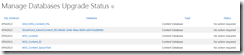
image

c) Verify User Profile Service Application

Note: if this service is not running verify if the FIM Windows Services is running.

image

d) AD Connection (ensure you have used Admin rights and using the credential for USP Admin to review this)

If you have an issue with one the Service Application Database then you will need to run a command

(Get-SPDatabase | ?{$_.type -eq"Microsoft.SharePoint.BusinessData.SharedService.BdcServiceDatabase"}).Provision()

image

Verify if all the key Application pools and Websites are running on IIS

It is also advisable to verify the status of the SQL DB if all are online and verify the key content DB Versions.

That’s all folks!!

If need have any queries or need any assistance, you can reach out to me.

Unlocking the Mystery of Patching SharePoint & Project Server

Real-world, best practice approach for patching SharePoint and Project Server 2010/2013.

Applies: SharePoint and Project Server 2010/2013. The post below assumes that the reader has administrative knowledge of maintaining a SharePoint farm.  Also observe the planning notes below.

Planning 

As always, before embarking on SharePoint/Project Server update on your production system, answer these two questions;

A) Is the update necessary? Is it solving an existing problem?

Do not simply rush into applying the latest updates just because it has been released!!

That said, do ensure that you are not too far behind on patching your environment, that you have an unsupported system. Remember that patching is not just about SharePoint and Project. You need to ensure that SQL Server (and related components) are also at a supported patch level.

B) Have you successfully tested the patch/update on development/test environment with a copy of live data prior to applying on the production system?

By testing, I do not just mean the successful patching of the servers, but ALSO ensure that the key business processes and solutions are tested thoroughly.

Here are some guidance notes – The Mystery behind patching;

Step (1) – Existing System Validation 

Run SharePoint Configuration Wizard (SCW) to validate existing farm configuration to validate the the existing state of the farm. If issues are encountered you need to resolve them first.

You need only run this on one of the Web/App servers, preferably the one hosting SharePoint Central Administration (CA).

Ensure all the core services are running after the validation.

Step (2) – Preparation 

On each of the web server(s) running SharePoint Server 2013, starting with the one hosting SharePoint Central Administration portal, stop the following Windows Services in this order:

  1. World Wide Publishing Service
  2. SharePoint Time Service
  3. SharePoint Server Search
  4. SharePoint Administration
  5. SharePoint Tracing Service
  6. SharePoint Search Host Controller*
  7. AppFabric Caching Service*

If Project Server is installed;

  1. Microsoft Project Server Calculation Service*
  2. Microsoft Project Server Event Service
  3. Microsoft Project Server Queue Service

Note: The reason why you need to stop the SPTimerV4 service first is because the SPTimerV4 service monitors the SPSearchHostController service. The SPTimerV4 service will start the SPSearchHostController service it if it finds that the SPSearchHostController is stopped. Therefore, if the SPTimerV4 service is running after you stop the SPSearchHostController service, the SPTimerV4 service might start the SPSearchHostController without you noticing it.

*Note: SP/PS2013 Services.

You may also be required to stop the following services during the patch installation.

image

In a multi Web/App server environment, this needs to be done on all the servers starting with the one hosting the CA.

Step (3a) – Update 

Install the update package on the server by following the instructions that come with the update package. In this step the package is extracted and updated files/components are installed.

Note: In a multi Web/App server environment, this needs to be installed on all the servers starting with the one hosting the CA. DO NOT run SharePoint configuration Wizard (Steps 4 & 5) until all servers are updated. Example on-premise environment with 6 web/apps servers is shown in fig below. 

image

You may be required to reboot the server, but do this only after this update has been applied on ALL the Web/App Servers in the farm, staring with the one hosting the CA portal.

Step (3b) – Update 

Restart the Windows Services in the following order:

  1. World Wide Publishing Service
  2. SharePoint Server Search
  3. SharePoint Time Service
  4. SharePoint Administration
  5. SharePoint Tracing Service  
  6. SharePoint Search Host Controller*
  7. AppFabric Caching Service*

If Project Server is installed;

  1. Microsoft Project Server Calculation Service*
  2. Microsoft Project Server Event Service
  3. Microsoft Project Server Queue Service

Note: In a multi Web/App server environment, this needs to be done on all server, ONLY after all the servers are updated (Step 3).

Step (4a)- Upgrade

Finally, Run SharePoint Configuration Wizard (SCW) to upgrade the system incl database schema.

Note: You may need to run this a SECOND time to ensure successful completion.

In a multi Web/App server environment, this needs to be run on all the servers starting with the one hosting the CA.

If you encounter a failure when running SCW, you can try to force the upgrade using the following approach in Step (4b).

Step (4b)- Force Upgrade using b2b command

If for any reason, your upgrade fails, you can try forcing the upgrade using the following method.

Note: first review logs and assess the reasons for any failure. It may be some data or feature related issue. As always, approach the following with due care and attention and test thoroughly, prior to applying on live production system.

  1. Stop SharePoint Admin and Timer service
  2. Navigate to Drive:\ProgramData\Microsoft\SharePoint\Config\GUID and delete all the XML files from the directory. DONOT delete the cache.ini
  3. On Command prompt navigate to c:\program files\common files\microsoft shared\web server extensions\14\bin and run: stsadm -o execadmsvcjobs
  4. Open the cache.ini with Notepad and reset the number to 1. Save and close the file.
  5. Now start the SharePoint Admin and timer service and
  6. Finally, Run the following command using the CMD prompt (run as Admin) from 12\bin directory “psconfig -cmd upgrade –inplace b2b -wait –force”

Note: Sometimes you need to run the following SharePoint PS command if you have some data/feature issues; psconfig -cmd upgrade -inplace b2b -force -cmd applicationcontent -install -cmd installfeatures

image

Note: it very important that while the above command is being run, the SharePoint Admin and timer service is running i.e. STARTED. I did encounter a couple of instances where these had stopped. You need to ensure these are running while the above command is run.

After you have a successful outcome as in figure above, I would recommend that you run the SharePoint Configuration Wizard again to verify all is ok.

Step (5)- Post Update Checks

After all that hard work, ensure that all is working as expected. Check the following in SharePoint Central Admin Portal;

a) Verify Version (via CA > System Settings > Servers in the Farm)

image

b) Database Upgrade Status (via CA > Upgrade and Migration > Check Upgrade status and Review Database Status)

image

c) Verify User Profile Service Application

Note: if this service is not running verify if the FIM Windows Services is running.

image

d) AD Connection (ensure you have used Admin rights and using the credential for USP Admin to review this)

If you have an issue with one the Service Application Database then you will need to run a command

(Get-SPDatabase | ?{$_.type -eq"Microsoft.SharePoint.BusinessData.SharedService.BdcServiceDatabase"}).Provision()

image

Verify if all the key Application pools and Websites are running on IIS

It is also advisable to verify the status of the SQL DB if all are online and verify the key content DB Versions.

That all folks!!

If need have any queries or need any assistance, you can reach out to me.

Wednesday, 30 September 2015

Restrictions and limitations when you sync SharePoint libraries to your computer through OneDrive for Business

INTRODUCTION

This Microsoft article contains information about the restrictions and limitations in using OneDrive for Business (formerly SkyDrive Pro) to sync SharePoint Online or SharePoint 2013 libraries to your computer.

MORE INFORMATION
Number of items that can be synced
You can sync up to 20,000 items total across all synchronized libraries. This includes OneDrive for Business libraries, Team Site libraries, or both. This includes folders and files. Separately from the overall sync limit, there are limits to the number of items that can be synchronized for each library type.
  • You can sync up to 20,000 items in an OneDrive for Business library. This includes folders and files.
  • You can sync up to 5,000 items in a SharePoint library. This includes folders and files. These are libraries that you find on various SharePoint sites, such as team sites and community sites, libraries that other people created, or that you created from your Sites page. You can sync multiple SharePoint libraries. Any team sites that you sync will also count against the overall 20,000 item limit across all synchronized libraries.
Size limit for syncing files
In any SharePoint library, you can sync files of up to 2 gigabytes (GB).
Character limit for files and folders
These limits apply to files and folders that you add to a synced library folder for uploading to SharePoint.
  • In SharePoint Server 2013, file names can have up to 128 characters.
  • In SharePoint Online, file names can have up to 256 characters.
  • Folder names can have up to 250 characters.
  • Folder name and file name combinations can have up to 250 characters.
Invalid characters
SharePoint Online
The following characters in file or folder names aren't supported when you sync OneDrive for Business with SharePoint Online:

\
/
:
*
?
"
<
>
|
#
%

Additionally, a file or folder name that begins with a tilde (~) isn't supported.

SharePoint Server 2013
The following characters in file name aren't supported when you sync OneDrive for Business with SharePoint Server 2013:

\
/
:
*
?
"
<
>
|
#
{
}
%
~
&

A file name that begins with a period (.) or a tilde (~) isn't supported.

Unsupported folder names
When you sync OneDrive for Business with SharePoint Online or SharePoint 2013, a folder named "forms" isn't supported at the root level for a list or library. This occurs because "forms" is a hidden default folder that's used to store templates and forms for the library. Additionally, a folder that contains the string _vti_ is reserved by SharePoint, and isn’t supported.
The following folder names can be synchronized in OneDrive for Business and SharePoint Online. However, if they’re synchronized, they won’t appear when you view the library on the SharePoint Online or OneDrive for Business webpage. With some of these restrictions, you may be unable to add files or folders that have these characters while in the OneDrive for Business folder. However, if you create the files or folders outside OneDrive for Business and then drag those files or folders into the OneDrive for Business folder, the files and folders will sync but the files won't appear on the webpage.

*_files:
*_Dateien
*_fichiers
*_bestanden
*_file
*_archivos
*_tiedostot
*_pliki
*_soubory
*_elemei
*_ficheiros
*_arquivos
*_dosyalar
*_datoteke
*_fitxers
*_failid
*_fails
*_bylos
*_fajlovi
*_fitxategiak
*_private

GUID strings as file names
The GUID string structure is supported in SharePoint Online.
The following GUID string structure isn't supported for file names in SharePoint 2013:

'{' + 8 hexadecimal + '-' + 4 hexadecimal + '-' + 4 hexadecimal + '-' + 4 hexadecimal + '-' + 12 hexadecimal +'}'

For example, a GUID that matches this structure resembles the following:

{9b6634a7-26b7-40a2-a48e-6f967d89c29e}

Invalid file types
You can't upload files that have a *.tmp or *.ds_store extension, and you can't upload desktop.ini, thumbs.db, or ehthumbs.db files.
Additionally, you can't upload files whose file types are blocked on the SharePoint site. If your organization is running SharePoint Server, the list of blocked files may vary, depending on what your administrator sets up. If your organization is running SharePoint Online, the default list of blocked files is fixed and can't be changed. To see a list of the default blocked files, go to the following Microsoft website:

File types that cannot be added to a list or library

Outlook PST files
Whereas PST files aren’t actively blocked by OneDrive for Business, syncing PST files that are in an open state isn’t supported. If you decide to sync PST files (for example, an archive PST file that you don’t load or view in Outlook), they can’t be in an open state at any time by any application while they’re in the OneDrive for Business sync folder. A PST file that’s connected to Outlook will be updated regularly and therefore if synchronized, can result in too much network traffic and growth of the Office File Cache on your local drive.
OneNote notebooks
Because OneNote notebooks have their own sync mechanism, they aren't synced by the OneDrive for Business sync client. You can upload OneNote notebooks to a SharePoint Online page. However, they won't sync with through the OneDrive for Business sync client application. Additionally, if you add a OneNote notebook to a local folder that syncs with SharePoint Online, the notebook won't sync with the SharePoint site and may cause other sync errors within the local folder.
Open files can't be synced
Any file that’s currently open by an application (for example, an Excel .xlsx file) can't be synced by OneDrive for Business.
To sync the file, close any application where the file is currently being used, and then sync the file.
Lookup columns in a library
The SharePoint Online or OneDrive for Business library can't exceed the lookup column threshold. For more information, go to the following Microsoft Knowledge Base article:

2927386 "We couldn’t sync this library" error when you use the OneDrive for Business sync client

"Fix it" tool to help in renaming files and folders to prepare or fix the naming of items in a local folder or OneDrive for Business folder
To get files to syncsuccessfully, you may have to rename a wide range and large number of files if their names contain unsupported characters. This Fix it tool for Windows automatically renames files and folders whose current names contain any unsupported characters. The tool also generates a report of those changes and of any files that are violating other restrictions that are called out in this article, and shows which folders were scanned by the tool.
Supported changes by this tool apply only to SharePoint Online. SharePoint Server 2013 may have a separate set of restrictions that were set by your administrator.
The Fix it tool currently performs the following tasks on the OneDrive for Business folder or local folder that you specify:
  • Removes unsupported characters from file or folder names. For example, a file that's named This%is%a%test.doc will be renamed Thisisatest.doc.
  • If an item has only invalid characters, it will be renamed Invalid Renamed File. If the item is a folder, it will be renamed Invalid Renamed Folder.
  • If a file or a folder is renamed, and the renamed file or folder conflicts with an existing item on the same directory path, the item will be renamed by appending an <x> to the name. The <x> placeholder represents is an integer, starting with the number 1, until all rename actions are completed for that folder.
    For example, assume that a folder has two files that are named HelloWorld.doc and Hello%World.doc. Because % is an unsupported character, the second file is renamed HelloWorld.doc. To avoid duplication in the same folder, the name of the renamed file will be changed to HelloWorld1.doc.
In addition to file names being changed by this Fix it tool, several other rules are run to check for any additional limitations that you may encounter when it's syncing. A report that documents the issues that were found is generated and put on your desktop for you to review. A new log file will be generated every time that you run the Fix it tool.
The Fix it tool won't change file and folder names that have unsupported characters or generate warnings in the log file for the following items:
  • OneNote notebook names
  • Open files
  • Lookup columns
  • Maximum path character count for an uploaded file
    (The character count is not validated.)
To fix file and folder name problems automatically, click the Fix it button or link, and then follow the steps in the Fix it wizard.

More details and Download: https://support.microsoft.com/en-us/kb/2933738

Thursday, 24 September 2015

Resource Engagements–Overview (New!! for Project Online)

Here is a Microsoft article providing an overview of the new Resource Assignment Feature for Project Portfolio Management (PPM) Online and Project 2016.

Some resources have limited availability, and may have their time scheduled by a resource manager. With Project, resource managers and project managers can negotiate an agreement, called a resource engagement, to make sure that resources are being used appropriately and effectively throughout your organization.

Important   Resource engagements are only available if you're using Project Professional 2016 or Project Pro for Office 365, connected to Project Online or Project Server 2016 Preview. Project Standard 2016 does not include resource engagements.

Step 1: Resource manager decides who needs approval

When a resource manager sets up the enterprise resource pool in Project Online or Project Server 2016 Preview, he or she can identify some resources as requiring approval to be assigned to projects.

Identifying resources that require approval

Step 2: Project manager requests a resource

When a project manager decides to use a resource that requires approval on a project, he or she submits an engagement request in Project Professional 2016 or Project Pro for Office 365, with the date range for when the resource is needed, and either a certain percentage of that resource's time during that date range, or a set number of hours during that date range.

Project manager requesting a resource

Step 3: Resource manager reviews the request

After the project manager submits the request, the resource manager reviews it in Project Online or Project Server 2016 Preview.

Resource manager reviewing a request

To help determine whether the engagement request can be approved, resource managers can evaluate resource capacity to make sure your organization’s resources are being used effectively. If something about the request doesn’t work, the resource manager can adjust the dates, change the percentage or hours, or even swap out the resource altogether for another resource with better availability.

If the resource manager makes changes to the request, the project manager can review them and resubmit the request with additional changes, if necessary.

If the resource manager rejects the request, the project manager can make changes and resubmit the request to negotiate with the resource manager and reach an agreement that works.

Step 4: Resource can begin work!

Once the resource manager and project manager come to an agreement about the engagement, and the resource manager approves the request, the project manager is free to assign the resource to tasks in the project.

Note   Resource engagements support communication about approval requirements, but are not designed to actually prevent a project manager from assigning a resource without approval.

If an assignment doesn’t meet the date, percentage, or hours requirements of the engagement agreement, Project will let the project manager know by displaying an indicator next to the task. This signals to the project manager that either the assignment or the engagement needs to be adjusted.

Applies To: Project Pro for Office 365, Project Online, Project Professional 2016

Wednesday, 23 September 2015

Office2016 is Here!!

It’s here! Today is the worldwide release of Office 2016 for Windows. This marks a milestone in delivering new value for Office 365 subscribers with a focus on collaboration, apps that work for you, a perfect pairing with Windows 10, and security features businesses will love. It also marks a new model for delivery, where subscribers can expect to get more frequent updates with new features and improvements. Along with Office 2016 for Windows, today we are also releasing Office 2016 for Mac as a one-time purchase option, along with several new and enhanced Office 365 services.

Read more >>>>>>>>>>